
Quick answer
- FireShot: in FireShot Lite, the List of URLs capture is "visible part only". Full-page captures of a list need FireShot Pro ($39.95 per year, or $99.95 one-time for the Lifetime license).
- GoFullPage: captures the current page with one click or Alt+Shift+P. Its Chrome Web Store listing doesn't mention capturing a list of URLs or several tabs in one run.
- BatchScroll: paste a list, pick a device size, click Capture N screenshots. The Free plan captures full pages for up to 25 URLs per batch and exports a ZIP with a CSV report.
- BatchScroll Pro adds up to 1,000 URLs and 4 device sizes per batch, a merged PDF and sitemap import for $29 one-time (or $4.99/month).
- If you mostly capture one page at a time and annotate it, FireShot or GoFullPage is still the better fit.
Competitor details below come from their official pages as of October 8, 2026 (linked).
What FireShot offers for URL lists
FireShot is a screenshot and annotation extension with a Lite version and a paid Pro version. Its Lite vs Pro comparison page answers the "FireShot capture list of URLs" question directly:
- List of URLs: Lite captures the "visible part only"; Pro is checked.
- All open tabs: also "visible part only" in Lite; Pro is checked.
- Multipage PDFs and Advanced Entire page captures (handling floating elements) are Pro features. Capturing all tabs to a single PDF is marked for Pro on Windows.
So for FireShot Lite vs Pro, the difference for URL lists is simple: Lite gives you the first screen of each URL, Pro gives you the full page.
FireShot's buy page lists FireShot Pro at $39.95 per year, or a Lifetime license at $99.95 one-time ("Pay once. Own FireShot forever"), with unlimited usage on two devices for personal use. Both plans list "Batch & automated captures" among the included features.
What GoFullPage offers
GoFullPage is a one-click full-page screenshot extension for Chrome. According to its Chrome Web Store listing, you click the extension icon (or press Alt+Shift+P) to capture the current page. You can export the result as PNG, JPEG or PDF, and a premium editor lets you crop and annotate screenshots.
Can GoFullPage capture multiple pages? The listing describes the page you're on and doesn't mention capturing a list of URLs or several tabs in one run. Check GoFullPage's own pages for current features before planning a batch around it.
Where BatchScroll is different
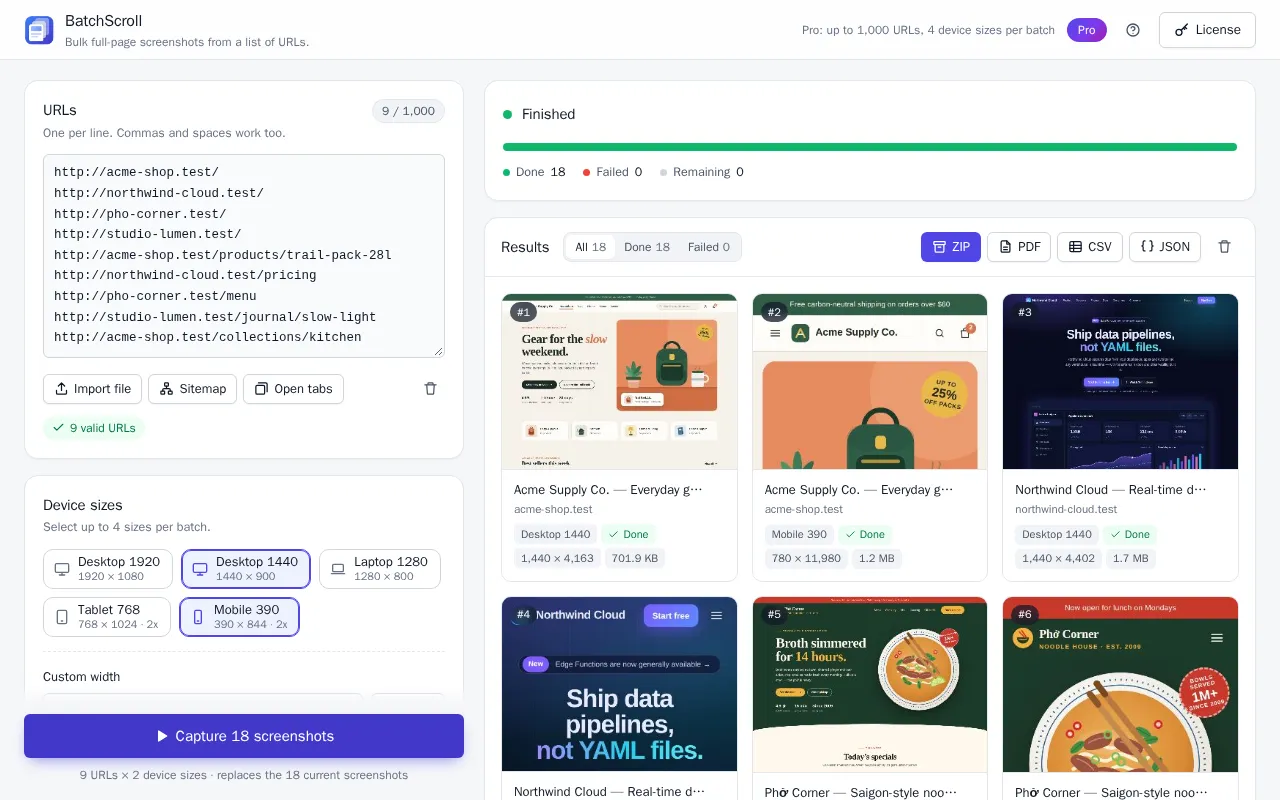
BatchScroll is a Chrome extension built around one job: a list of URLs in, full-page screenshots out. What that means for a full page screenshot extension for multiple pages:
- Lists first. Paste URLs, use Import file for a .txt or .csv, add everything with Open tabs, or on Pro load a site's pages with Sitemap → Import from sitemap. Invalid lines and duplicates are reported and skipped.
- Full pages on the Free plan. Up to 25 URLs per batch, pages up to 15,000 px tall, no account needed. Pro raises this to 1,000 URLs and 60,000 px.
- Device sizes, including mobile. Presets from Desktop 1920 to Mobile 390 (mobile user agent, 2× density). Free: 1 size per batch; Pro: up to 4, plus custom widths. Mobile is an emulated viewport in desktop Chrome, not a real phone.
- A report, not just images. The ZIP contains every image plus
report.csvwith each URL's HTTP status, final URL after redirects, title and any error. Error pages (404, 500) are still captured. - Recovery built in. Pause, Resume, Retry failed, and Continue (N left) after an interruption; results are restored after a reload.
- Runs in your own Chrome. Pages load in a normal window of your Chrome profile, so it works on pages behind your login, localhost and staging. Nothing is uploaded; the screenshots stay on your computer.
Pro is $29 one-time, or $4.99/month if you only need it for a project. See pricing for what each plan includes.
Honest limits: BatchScroll works in desktop Chrome only and needs Chrome's debugger permission, so Chrome shows a warning at install and a "started debugging this browser" bar while a batch runs. Chrome must stay open during a batch. It isn't a crawler: it captures the URLs you give it or a sitemap.
FireShot alternative comparison table
| Feature | BatchScroll | FireShot Lite | FireShot Pro | GoFullPage |
|---|---|---|---|---|
| Capture a list of URLs | Yes, full page (Free: 25 per batch; Pro: 1,000) | Visible part only | Yes | Not listed |
| All open tabs | Yes, full page (Open tabs adds them to the list) | Visible part only | Yes | Not listed |
| Device sizes incl. mobile | Yes (Free: 1 per batch; Pro: up to 4 + custom width) | Not listed | Not listed | Not listed |
| Per-URL report (HTTP status, final URL) | CSV (all plans), JSON (Pro) | Not listed | Not listed | Not listed |
| Retry failed / continue a batch | Yes | Not listed | Not listed | Not listed |
| Sitemap import | Pro | Not listed | Not listed | Not listed |
| PDF output | Merged PDF of the batch (Pro, image-based) | — | Multipage PDFs; all tabs to one PDF (Windows) | PDF export |
| Image editor / annotations | Basic, for the page you're on (crop, shapes, arrows, text, blur); none for batches | — | Editor & smart annotations (on Windows) | Premium editor (crop, annotate) |
| Price | Free; Pro $29 one-time or $4.99/month | — | $39.95/year or $99.95 one-time (Lifetime, two devices, personal use) | — |
Competitor details as of October 8, 2026, from their official pages (linked). Check their sites for current features and prices.
When FireShot or GoFullPage is the better choice
BatchScroll isn't the right tool for everyone. Pick one of the others if:
- You capture one page at a time. GoFullPage's one click (or Alt+Shift+P) on the page you're already reading is hard to beat. BatchScroll's toolbar button captures the page you're on too, but BatchScroll is built for lists.
- You want to edit and annotate. GoFullPage has a premium editor for cropping and annotating, and FireShot Pro lists an editor with smart annotations (on Windows). BatchScroll's editor is basic (crop, shapes, arrows, text, highlighter, blur) and only for captures of the page you're on, not for batches.
- You rely on advanced PDFs. FireShot Pro lists multipage PDFs and capturing all tabs to a single PDF (on Windows) among its PDF features. BatchScroll's merged PDF is built from the screenshots, so its text isn't selectable or searchable.
- You don't use Chrome. BatchScroll is Chrome-desktop only. FireShot's buy page mentions Chrome, Firefox, Edge and Safari.
For a single page you can also skip extensions entirely: in Chrome DevTools, open the Command Menu (Ctrl+Shift+P, or Cmd+Shift+P on Mac), type "screenshot" and choose Capture full size screenshot. That's free and built in, but you repeat it for every URL.
BatchScroll earns its place when the list is the job: dozens or hundreds of URLs, at desktop and mobile sizes, with a report you can sort in a spreadsheet.
How to switch: capture your first list in BatchScroll
- Install BatchScroll from the Chrome Web Store, click its toolbar icon, then Capture a list of URLs. The app opens in a tab.
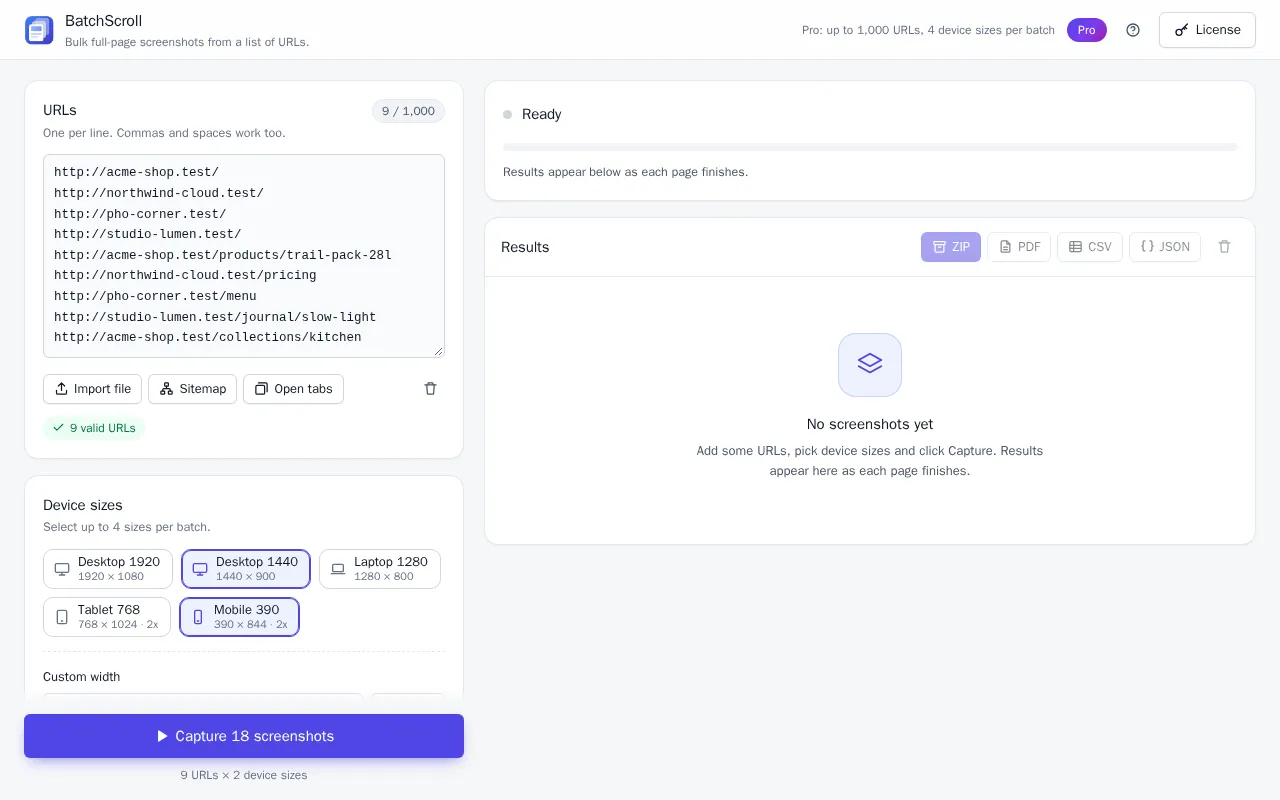
- Add your URLs. Paste them into the URLs box, or use Import file (.txt or .csv, up to 5 MB) or Open tabs.
- Choose a size under Device sizes, for example Desktop 1440 or Mobile 390. Leave Full page on.
- Click Capture N screenshots. A separate Chrome window opens and works through the list. Leave Chrome's debugging bar open; closing it pauses the batch.
- Download the results. Click ZIP for every image plus
report.csv. If some pages failed, click Retry failed first.
Tip: If your URLs live in a spreadsheet, save that column as a .csv and use Import file. Invalid lines and duplicates are reported and skipped, so there's no need to clean the list first.
Frequently asked questions
Can FireShot screenshot a list of URLs for free?
As of October 8, 2026, FireShot's comparison page marks the List of URLs capture as "visible part only" in FireShot Lite, so you get the first screen of each page. Full-page captures of a list are listed for FireShot Pro, which is sold as a yearly plan or a one-time Lifetime license. BatchScroll's Free plan captures full pages for up to 25 URLs per batch.
Does GoFullPage support multiple URLs?
As of October 8, 2026, GoFullPage's Chrome Web Store listing describes capturing the current page (click the icon or press Alt+Shift+P) and doesn't mention capturing a list of URLs or several tabs in one run. Check GoFullPage's own pages for its current features.
Is BatchScroll cheaper than FireShot Pro?
BatchScroll's Free plan already captures full pages for up to 25 URLs per batch, and BatchScroll Pro is available as a one-time license with no renewals; see the current price in our pricing section. FireShot Pro is sold as a yearly plan or a one-time Lifetime license for two devices (personal use), as listed on its buy page as of October 8, 2026. Compare current prices on both sites.
Can I use BatchScroll alongside FireShot or GoFullPage?
Yes. BatchScroll is a separate Chrome extension, so you can keep your current tool for one-off captures and annotations and use BatchScroll when you have a list of URLs to capture.
Does BatchScroll have an image editor?
A simple one, for the page you're on: capture it with the BatchScroll toolbar button, then crop it, add boxes, arrows, text or highlights, or blur private details before you copy or download it. Captures from a list of URLs are saved as they are (PNG or, on Pro, JPEG images; a ZIP with a CSV report; on Pro, a merged PDF and JSON): to edit those, use an image editor.
FireShot and GoFullPage are trademarks of their respective owners. BatchScroll is not affiliated with them.
Capture your whole URL list, not one page at a time
Paste your list, pick desktop or mobile, and download every full-page screenshot with a CSV report. Free plan: 25 URLs per batch, no account needed.