
Quick answer
- A few pages, searchable text: open each page in Chrome, use Print → Save as PDF, then combine the files with a PDF merge tool. Free, but one tab at a time.
- Many pages, exact on-screen look: paste the links into BatchScroll, pick a device size, click Capture N screenshots, then click PDF.
- The PDF follows your list order, with one page per screenshot (Fit to screenshot) or flowed onto A4 portrait sheets.
- The trade-off: the BatchScroll PDF is made of images, so its text isn't selectable or searchable. PDF export is a Pro feature.
Evidence packs, research files, client reviews and design sign-offs all need the same thing: one file to send, print or archive instead of fifty open tabs. Here's how to get there, and which method fits which job.
Three ways to combine web pages into one PDF
There are three practical ways to convert multiple web pages to PDF, and they produce quite different files.
1. Print each page to PDF, then merge
This is the method most how-to articles describe. Open a page, press Ctrl+P (Cmd+P on a Mac), choose Save as PDF and save. Repeat for every URL, then combine the files with a PDF merge tool such as Preview on a Mac. Google documents the dialog in Print from Chrome.
It's free and the text stays searchable. But it's one tab at a time, and Chrome prints the page's print layout, not what you see on screen: content often reflows to paper width, backgrounds disappear unless you tick Background graphics, and sticky headers or lazy-loaded images can come out wrong.
2. Cloud URL-to-PDF converters
An online multiple URL to PDF converter takes a list of links and returns one file. These services load each page from their own servers, so they see only what an anonymous visitor sees: pages behind your login, staging sites, localhost and intranet pages are out of reach or come back as a sign-in screen. Many also render the print layout, and your URL list goes to a third party.
3. Screenshot every page and merge the images
BatchScroll captures each URL as a full-page screenshot in your own Chrome, then merges the screenshots into one PDF on your computer. It looks exactly like the screen at the device size you picked, logged-in pages work, and nothing is uploaded. (Chrome DevTools' Capture full size screenshot command plus an image-to-PDF tool does the same by hand, one page at a time.)
The trade-off: each PDF page is an image, so you can't select, search or copy the text. Need searchable text? Print and merge. Need the pages to look exactly as they did on screen? Use a screenshot PDF.
Screenshot PDF vs print PDF
| Screenshot PDF (BatchScroll) | Print PDF (Chrome Save as PDF) | |
|---|---|---|
| Layout fidelity | Exactly what the screen shows at the chosen device size | The print layout: often reflowed to paper width, backgrounds off by default |
| Selectable, searchable text | No, pages are images | Yes |
| Clickable links | No | Yes |
| Pages behind a login | Yes, uses your Chrome profile | Yes, one tab at a time |
| Long pages | One continuous capture per page, up to 60,000 px tall on Pro (longer pages are cut and flagged) | Split across paper pages; elements can break mid-way |
| Many URLs | Up to 1,000 URLs per batch, merged automatically | One page at a time, then a manual merge |
| File size | Larger: every page is a JPEG image | Usually smaller: text and vector graphics |
| Cost | Pro feature | Free, built into Chrome |
How to convert multiple URLs to one PDF, step by step
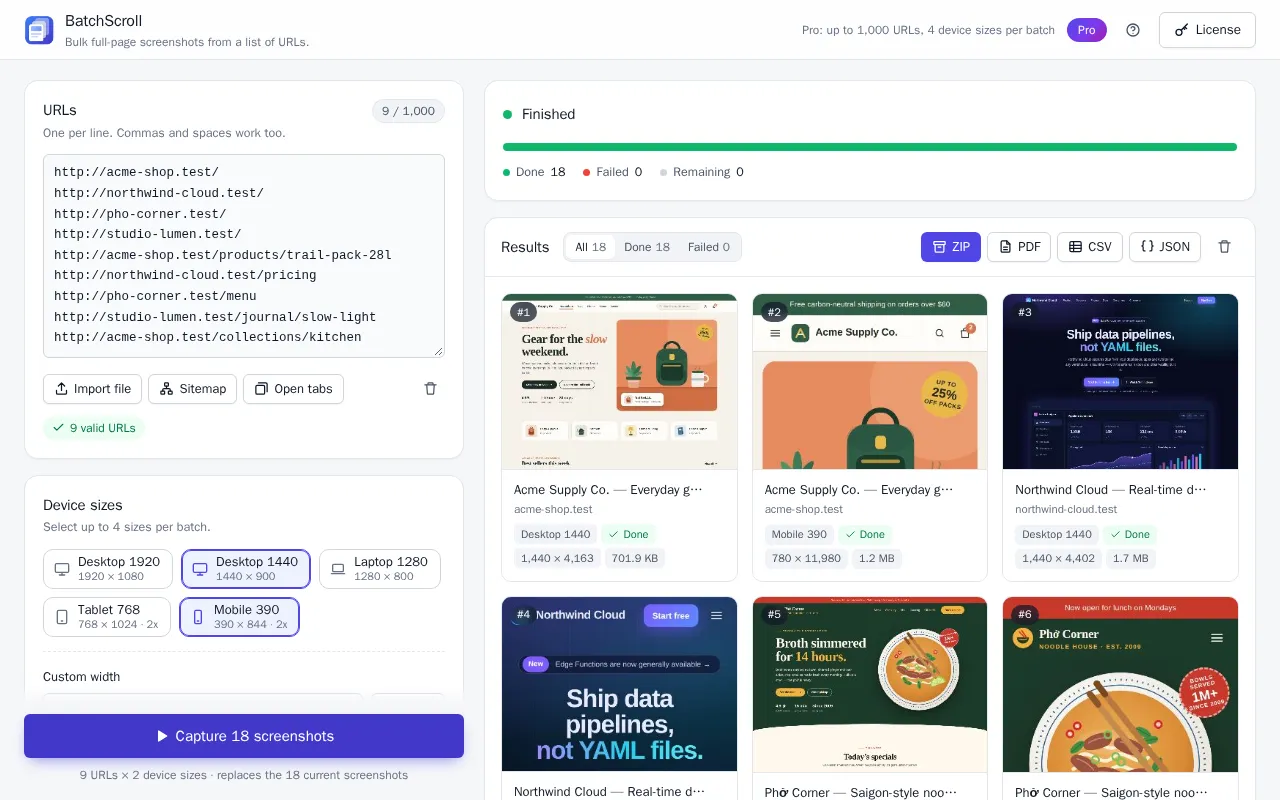
- Open BatchScroll and add your URLs. Click the BatchScroll toolbar icon, then Capture a list of URLs; the app opens in a tab. Paste your links into the URLs box, one per line, or use Import file (.txt or .csv), Open tabs or Sitemap (Pro). Invalid lines and duplicates are skipped.
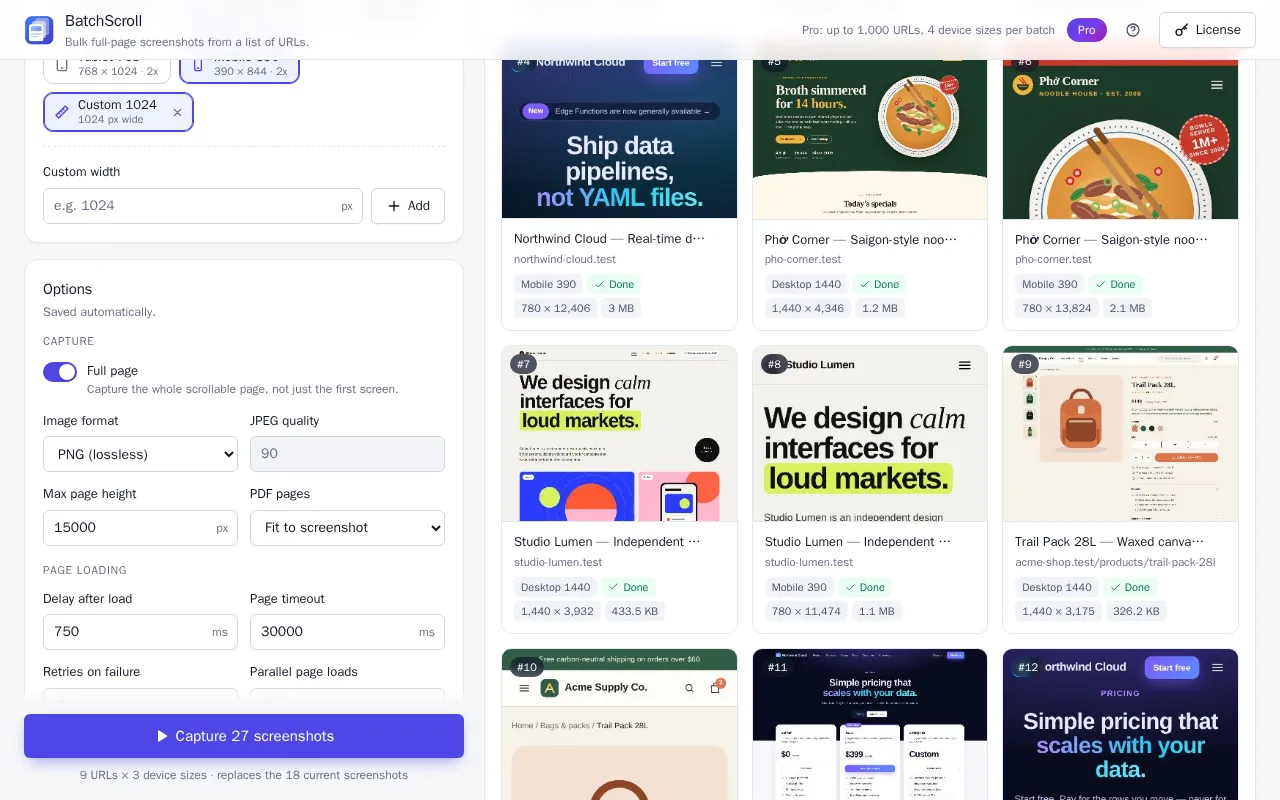
- Pick a device size. Under Device sizes, choose a preset such as Desktop 1440 for desktop layouts or Mobile 390 for phone layouts. Every extra size you select adds another capture per URL to the PDF.
- Check the options. In Options, leave Full page on to capture each page from top to bottom, and set PDF pages to Fit to screenshot or A4 portrait (explained below). On Pro, switching Image format to JPEG gives you a smaller file.
- Click Capture N screenshots. BatchScroll opens a separate Chrome window and works through the list. Chrome shows a "started debugging this browser" bar meanwhile (closing it pauses the batch); keep Chrome open until it finishes.
- Click PDF. In Results, click PDF. BatchScroll converts the images, adds the pages and downloads one file named like
batchscroll-20261008-142530.pdf.
Fit to screenshot or A4 portrait?
- Fit to screenshot (the default): one PDF page per screenshot, sized to match it, with no margins. Best for on-screen reading and client review. An extremely tall capture continues onto an extra page, since PDF pages max out at 200 inches.
- A4 portrait: each screenshot is scaled to the A4 width (with small margins) and flows across as many sheets as it needs; the next capture starts on a fresh page. Best for printing.
Tip: on A4, a 1440 px desktop capture shrinks to about half its on-screen size, so small text is hard to read on paper. For printed packs, Tablet 768 keeps text close to its on-screen size.
Page order and file names
The PDF follows your list: URL 1 first, then URL 2, and so on. If you selected more than one device size, each URL's sizes stay together (URL 1 at Desktop 1440, URL 1 at Mobile 390, then URL 2). To change the order, reorder the lines in the URLs box before you capture.
Only successful captures go into the PDF; if some URLs failed, click Retry failed before exporting. Pages that return an error status such as 404 or 500 are still captured, so they appear in the PDF exactly as they rendered.
The pages carry no URL captions, but the CSV report lists every capture in the same order, with its URL, final URL, HTTP status and title.
Need the separate images as well? Click ZIP for every screenshot as its own PNG or JPEG file plus report.csv. The PDF and ZIP share the batch's timestamp (batchscroll-YYYYMMDD-HHmmss), so they're easy to keep together.
Pages behind a login
BatchScroll captures in a normal window of your own Chrome profile, so it uses the sites you're already signed in to. Sign in to the dashboard, member area, CMS preview or client portal first, then run the batch; there are no cookies to export or passwords to hand over. Staging servers, localhost and intranet or VPN sites work too. This is the main thing cloud converters can't do; the guide to screenshotting pages behind a login has the details.
Note: the PDF is built on your computer and nothing is uploaded, but it contains whatever was on screen, including account names or customer data. Handle it like the pages it came from.
Tips for smaller PDFs
Screenshot PDFs are bigger than print PDFs because every page is a picture. These settings make the biggest difference:
- Use JPEG at a lower quality (Pro). The PDF stores pages as JPEG anyway (PNG screenshots are converted at high quality on export), so setting Image format to JPEG with JPEG quality around 70–80 gives a noticeably smaller file.
- Turn Full page off if you only need the first screen of each page. Every capture is then one viewport tall, and the batch runs faster.
- Lower Max page height. Long blogs and listings can run to tens of thousands of pixels; a lower cap cuts them earlier (flagged as truncated in the report).
- Capture fewer sizes. Each extra device size adds a capture per URL, and tablet and mobile presets use 2× pixel density.
- Split very long lists. Several smaller PDFs are easier to email and open than one huge file.
Frequently asked questions
Is the text in the PDF searchable?
No. Every page is a screenshot image, so the text can't be selected, searched or copied, and links aren't clickable. For searchable text, use Chrome's Print → Save as PDF for each page and merge the files, or run the BatchScroll PDF through an OCR tool.
Can I get the separate images too?
Yes. Click ZIP to download every screenshot as its own image file plus report.csv. The ZIP and the PDF come from the same capture run, so there's no need to capture the pages twice.
Is PDF export free?
No. The merged PDF is part of Pro. The free plan captures up to 25 URLs per batch and exports a ZIP of screenshots with a CSV report, so you can check the results before upgrading.
Does it keep the on-screen layout?
Yes. The PDF is built from screenshots at the device size you choose, so colors, backgrounds, fonts, sticky headers and the responsive layout look exactly as they did on screen. The print stylesheet isn't used.
Can it convert pages that need a login?
Yes. BatchScroll captures in a window of your own Chrome profile, so pages you're signed in to, plus staging sites and localhost, are captured just as you see them. Nothing is uploaded.
How many pages can one PDF hold?
One PDF holds the successful captures of a batch, in list order, up to about 2,000 PDF pages or 300 MB of images. A larger batch downloads as several PDF files (part 1 of 3, part 2 of 3, …), so each one still opens quickly. On Pro a batch can contain up to 1,000 URLs, and each extra device size adds a capture per URL.
Turn your list of links into one PDF
Capture every page full length in your own Chrome, then download a ZIP, or a merged PDF with Pro (large batches come as several PDF files). Free plan: 25 URLs per batch, no account needed.