
Quick answer
- Add BatchScroll to Chrome, click its toolbar icon, then Capture a list of URLs. The app opens in a tab.
- Paste your URLs, one per line, or use Import file, Open tabs or Sitemap (Pro).
- Pick a device size, leave Full page on and click Capture N screenshots.
- Click ZIP to download every image plus
report.csvwith the final URL, HTTP status and any errors. - The Free plan takes up to 25 URLs per batch; Pro takes up to 1,000.
The manual way (and why it doesn't scale)
Chrome can already take a full-page screenshot without any extension. Open the page, open DevTools (Ctrl+Shift+I, or Cmd+Option+I on a Mac), open the Command menu (Ctrl+Shift+P or Cmd+Shift+P), type "screenshot" and choose Capture full size screenshot. Chrome saves a PNG of the whole page. Google's 4 ways to capture screenshots with DevTools covers this and the other built-in options.
For three or four pages, that's all you need. For a list of 50 or 500, it falls apart:
- It's one page at a time: open, wait, run the command, save, repeat.
- You name and organize every file yourself.
- Nothing records which URLs redirected, returned a 404 or failed to load.
The other usual routes have catches too. Screenshot APIs and cloud scrapers typically need an API key and charge per screenshot, and since they run on remote servers they can't see pages behind your login, on localhost or on an intranet. Free online screenshot sites usually cap how many URLs you can submit. A Puppeteer or Playwright script works well if you're comfortable writing code.
BatchScroll sits in between: a bulk website screenshot tool that runs as a Chrome extension, so you can screenshot multiple URLs in your own browser with no code and no per-shot cost.
Screenshot a list of URLs with BatchScroll, step by step
Here's how to screenshot multiple pages at once, from a plain list to a ZIP of full-page images.
- Prepare the list. One URL per line is easiest; commas and spaces work too. If a line has no
https://, BatchScroll adds it, so you can paste straight from a spreadsheet column. - Add the URLs. Click the BatchScroll icon in the toolbar, then Capture a list of URLs, and paste into the URLs box. You can also use Import file (a .txt or .csv up to 5 MB), Open tabs to add the tabs you have open, or Sitemap (Pro) to load every URL from a sitemap. Invalid lines are listed with their line numbers, and duplicates are removed automatically.
- Pick a device size. Under Device sizes, choose Desktop 1920, Desktop 1440, Laptop 1280, Tablet 768 or Mobile 390. Free captures one size per batch; Pro captures up to four, plus a Custom width.
- Check the options. Keep Full page on to capture the whole scrollable page. Delay after load (1 second by default) lets animations and fonts settle. Turn on Scroll to load lazy content if images further down only load as you scroll.
- Click Capture N screenshots. The button shows the total (URLs × sizes). BatchScroll opens a separate, unfocused Chrome window for capturing. It uses your normal Chrome profile, so pages you're signed in to work too. Chrome shows its "started debugging this browser" bar while the batch runs; leave it open, because closing it pauses the batch.
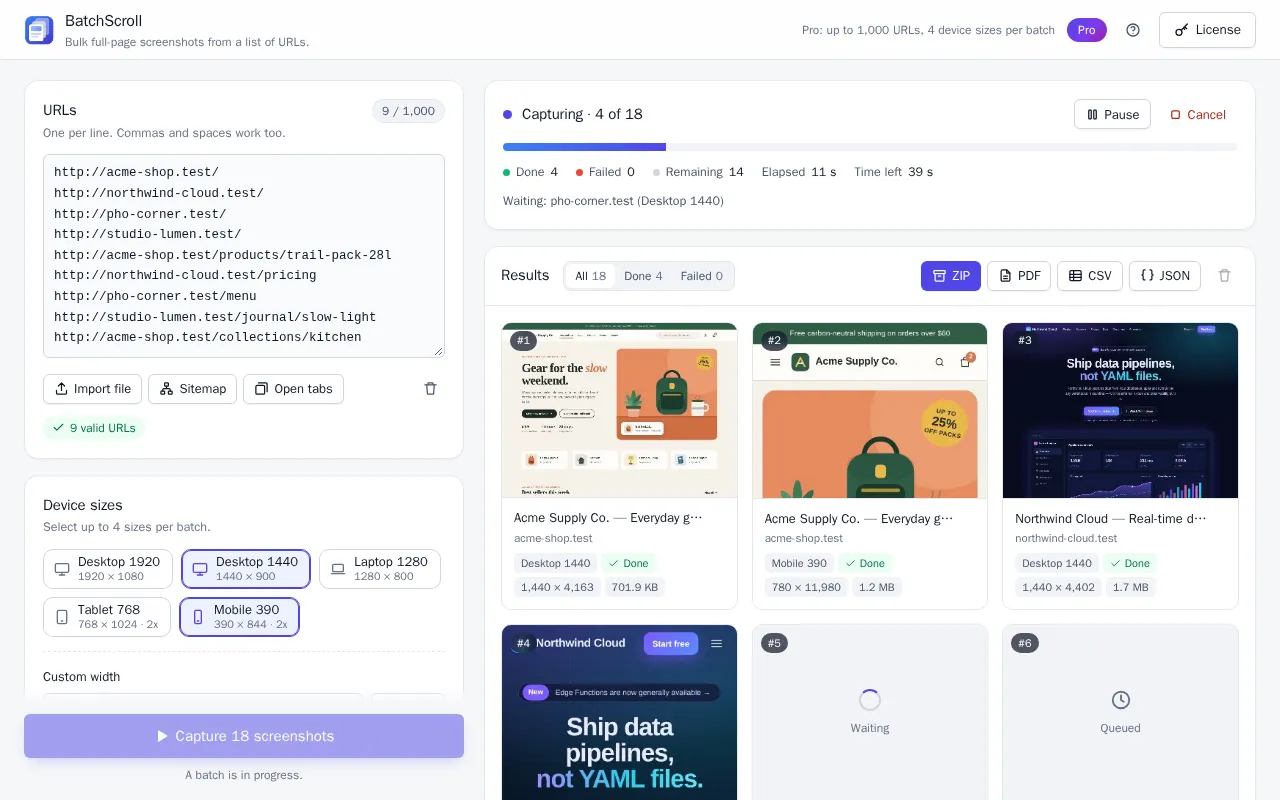
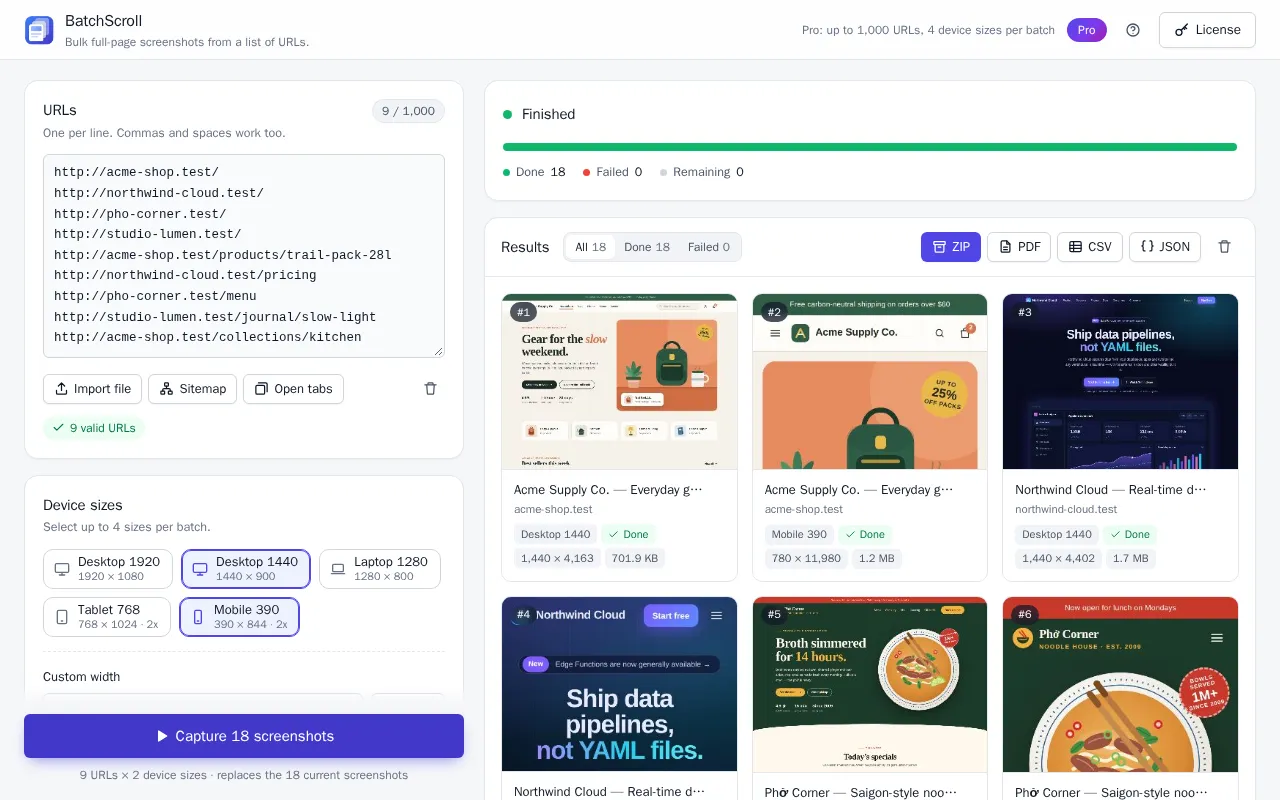
- Export. When the batch finishes, click ZIP for all images plus the report, or CSV for the report alone. On Pro you can also export a merged PDF or a JSON report.
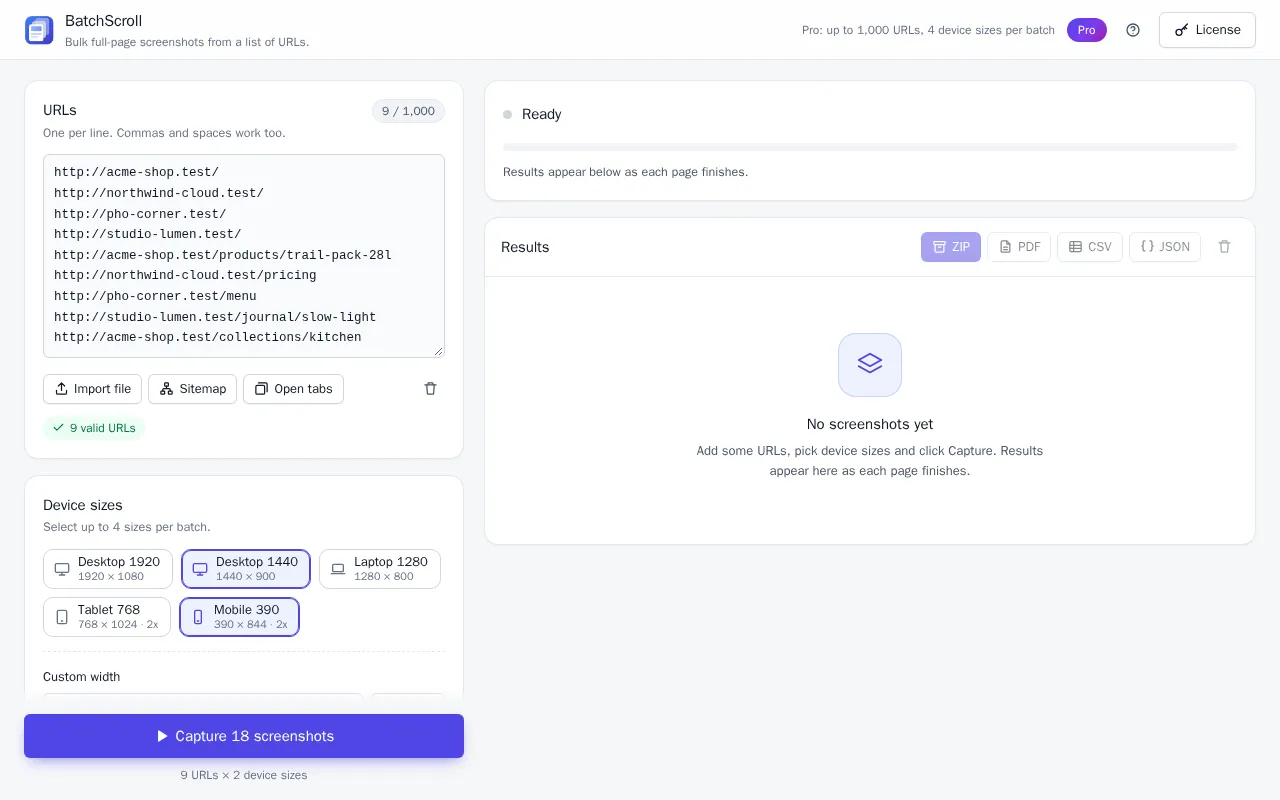
Results appear as each page finishes. You can Pause, Resume or Cancel at any time; just keep Chrome open until the batch is done.
What's in the ZIP and the CSV
The ZIP is named like batchscroll-20261008-143015.zip and contains one image per URL and size, plus report.csv (Pro also adds report.json). Default file names combine the position in the list, the host, the path and the size, for example 002_yoursite.com_pricing_desktop-1440.png, so they sort in the same order as your list. A very tall page may be split into several image parts, numbered _p1, _p2 and so on.
The CSV has one row per screenshot and 20 columns, including url, final_url (where redirects ended up), http_status, title, image width and height, truncated, status, error_code, warnings and files. Here's a made-up example with six of those columns:
| url | final_url | http_status | status | error_code | files |
|---|---|---|---|---|---|
| https://yoursite.com/ | https://yoursite.com/ | 200 | done | 001_yoursite.com_desktop-1440.png | |
| http://yoursite.com/pricing | https://yoursite.com/pricing | 200 | done | 002_yoursite.com_pricing_desktop-1440.png | |
| https://yoursite.com/old-page | https://yoursite.com/old-page | 404 | done | 003_yoursite.com_old-page_desktop-1440.png | |
| https://yoursite.com/brochure.pdf | error | UNSUPPORTED_CONTENT |
Note row 3: a 404 page is still captured, so you see what visitors see, and the status code flags it. Links to PDFs and file downloads are reported as not a web page. Filter the CSV on http_status or status in Excel or Google Sheets to find problem URLs.
Tips for big lists
- Split long lists. Free captures the first 25 URLs you paste, Pro the first 1,000. Run several batches for more. Duplicates are removed automatically.
- Use retries for flaky sites. Retries on failure is 1 by default and can go up to 3.
- Retry only what failed. After a batch, Retry failed re-runs just the failed URLs and keeps the rest.
- Pick up where you left off. If a batch is canceled or interrupted, Continue (N left) captures the remaining URLs. Finished screenshots are kept locally and restored after a reload.
- Go faster. Pro loads up to 3 pages in parallel and can hide cookie banners and chat widgets.
- Watch for very long pages. Pages are captured up to 15,000 px tall on Free and 60,000 px on Pro; anything longer is cut and flagged
truncatedin the report.
Export before the next batch. Starting a new batch replaces the current screenshots, so download the ZIP for each part of a split list before you capture the next one.
Free vs Pro for URL lists
| Feature | Free | Pro |
|---|---|---|
| URLs per batch | Up to 25 | Up to 1,000 |
| Device sizes per batch | 1 | Up to 4, including custom widths |
| Maximum page height | 15,000 px | 60,000 px |
| Image format | PNG | PNG or JPEG |
| Exports | ZIP, CSV | ZIP, CSV, merged PDF, JSON |
| Pages loaded in parallel | 1 | Up to 3 |
| File name pattern | Default names | Your own pattern |
| Sitemap import | No | Yes |
| Hide cookie banners & chat widgets, custom CSS | No | Yes |
| Price | Free, no account needed | $4.99/month or $29 one-time |
When to use an API or script instead
BatchScroll is for batch screenshot capture that you start by hand in desktop Chrome. A screenshot API or a Puppeteer/Playwright script is the better choice when:
- You need captures on a schedule, such as every night, or as part of a server-side job or CI pipeline. BatchScroll has no scheduling, monitoring or API.
- You want automatic visual diffs between runs. BatchScroll doesn't compare screenshots for you.
- No one can keep Chrome open on a desktop while the batch runs.
BatchScroll fits one-off or occasional lists better: audits, client reports, archiving pages, or before-and-after checks. It also reaches pages a cloud service can't, like dashboards behind your login, localhost, staging, or intranet and VPN sites. It isn't a crawler, though: it captures the URLs you give it (or a sitemap on Pro) and doesn't follow links.
Frequently asked questions
Is BatchScroll free?
Yes. The Free plan captures up to 25 URLs per batch at one device size, with ZIP and CSV exports and no account needed. Pro raises the limit to 1,000 URLs and adds more sizes, PDF and JSON exports, and sitemap import.
How many URLs can I capture at once?
Up to 25 URLs per batch on Free and up to 1,000 on Pro. If you paste more, only the first 25 (or 1,000) are captured, so split a longer list and run it in several batches, exporting each one before you start the next.
Does it capture the full page or only the visible area?
The full page, by default. Turn off Full page to capture only the first screen, which is faster. Pages taller than 15,000 px (Free) or 60,000 px (Pro) are cut at that height and marked as truncated in the CSV.
Where are the screenshots saved, and is anything uploaded?
Everything runs in your own Chrome. Screenshots are kept in the extension's local storage and saved to your normal downloads folder when you export. Nothing is uploaded; the only network calls are the license check and downloading a sitemap you ask BatchScroll to import.
What happens with 404s and URLs that fail?
Error pages such as 404 or 500 are still captured, so you see exactly what a visitor sees, and the http_status column records the code. URLs that can't be loaded at all, such as a DNS error or a link to a PDF or file download, are marked as failed with an error code and message. Click Retry failed to run just those again.
Can I name the files myself?
By default, file names combine the position in the list, the host, the path and the device size, for example 002_yoursite.com_pricing_desktop-1440.png. On Pro you can set your own File name pattern with tokens such as {title}, {date}, {width} and {index}.
Screenshot your whole URL list in one run
Paste the list, pick a size and download every full-page screenshot with a CSV report. Free plan: 25 URLs per batch, no account needed.