
Quick answer
- Find the sitemap: try
/sitemap.xml,/sitemap_index.xmlor/wp-sitemap.xml, or theSitemap:line in/robots.txt. - Load the URLs: on Pro, click Sitemap, paste its address and click Load URLs. On Free, copy the page addresses from the sitemap and paste them (25 per batch).
- Pick a device size, keep Full page on and click Capture N screenshots.
- Download the ZIP: every screenshot plus
report.csv, which flags failed, redirected and cut-off pages.
Ways to screenshot all pages of a website
A visual inventory of a whole site helps before a redesign, for a content audit, in a client handover, or to archive how the site looked on a given date. Most write-ups on this topic hand you a code loop or a paid service. The realistic options:
| Method | Good for | The catch |
|---|---|---|
| Chrome DevTools, Capture full size screenshot | A handful of pages, free | One page at a time |
| A Puppeteer or Playwright script | Developers who want full control | You write and maintain the code, logins included |
| A hosted screenshot API or monitoring service | Scheduled, automated captures | Account and API key; their servers must reach your pages |
| BatchScroll (Chrome extension) | A one-off capture of a whole site, no code | Needs a sitemap or URL list; Chrome stays open while it runs |
BatchScroll runs in your own Chrome, so it also captures staging, localhost and password-protected sites you're signed into. Nothing is uploaded; the screenshots stay on your computer.
Step 1: Find the website's sitemap
A sitemap is an XML file listing a site's pages for search engines, so it's the quickest route to a complete URL list. Check, in order:
- The usual addresses. Open
https://yoursite.com/sitemap.xml. If that's a 404, try/sitemap_index.xml(SEO plugins such as Yoast SEO and Rank Math) and/wp-sitemap.xml(WordPress's built-in sitemap). Some sites serve a compressed/sitemap.xml.gz. - robots.txt. Open
https://yoursite.com/robots.txtand look for a line starting withSitemap:. It gives the full address. - Your own tools. If you own the site, the Sitemaps report in Google Search Console or your SEO plugin settings show it.
Larger sites use a sitemap index: a sitemap of sitemaps that points to children such as page-sitemap.xml and post-sitemap.xml. Each file holds up to 50,000 URLs, per Google's sitemap documentation.
Check what's missing. A sitemap lists the pages the owner wants indexed. Noindex pages, thank-you pages and members-only areas are often left out, and an old sitemap can list pages that now redirect. For an audit or handover, compare it with the site's navigation.
Step 2: Load the URLs into BatchScroll
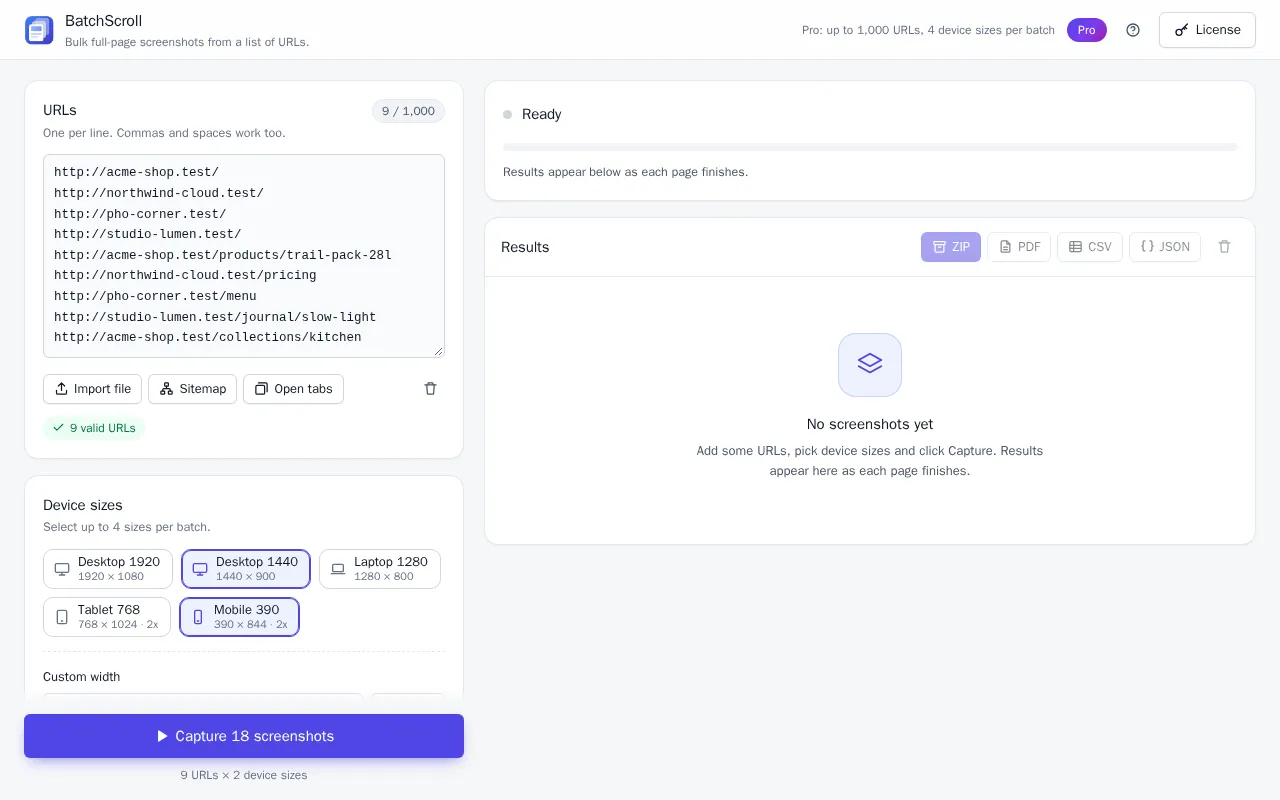
Click the BatchScroll icon in Chrome's toolbar, then Capture a list of URLs. The app opens in a tab, with the URLs box on the left.
With Pro: import the sitemap
- Click Sitemap under the URL box to open Import from sitemap.
- Paste the address into Sitemap URL. Just the domain works too: BatchScroll adds
https://and/sitemap.xml. - Click Load URLs and allow Chrome's prompt to read that website. BatchScroll gives the permission back after the import.
Sitemap indexes are followed one level deep (nested sitemaps on the same site), gzipped sitemaps work, and duplicates are skipped. One import adds up to 1,000 page URLs in sitemap order: one full Pro batch.
Sitemap behind a login? The import downloads the sitemap without your cookies, so it can't read one that requires signing in, which is common on staging sites. Open it in a tab while signed in and copy the URLs as below. The pages themselves are still captured with your login.
On Free: copy the URLs out of the sitemap
- Open the sitemap in a Chrome tab. You'll see raw XML, or a formatted table if the site adds a stylesheet, as WordPress and most SEO plugins do.
- Copy the page addresses: the text inside each
<loc>tag, or the table's URL column. - Paste them into the URLs box, one per line. Lines that aren't URLs are flagged as invalid and skipped, so check the valid-URL count before you start.
Free captures the first 25 URLs in the list per batch, so a 60-page site takes three batches. Have the list in a .txt or .csv file already? Import file picks out the web addresses for you.
Step 3: Choose device widths
Under Device sizes, Desktop 1440 suits most audits; add Mobile 390 when the mobile layout matters. Free captures one size per batch; Pro up to four, including a Custom width from 240 to 3840 px. Each size multiplies the job: 200 pages at two sizes is 400 screenshots. Mobile and tablet sizes are an emulated viewport in desktop Chrome, not a real phone.
Then check Options:
- Full page on, so each image runs from header to footer.
- Delay after load (1 s by default) and Scroll to load lazy content for animations and lazy-loaded images; a longer Page timeout for slow staging servers.
- On Pro, Hide cookie banners & chat widgets keeps consent pop-ups out of hundreds of images, and JPEG makes a big ZIP much smaller.

Step 4: Run, pause and resume the batch
Click Capture N screenshots. BatchScroll opens a separate, unfocused Chrome window and loads the pages there, one at a time on Free and up to three in parallel on Pro. It's a normal window of your Chrome profile, so a staging site, CMS preview or intranet you're signed into opens signed in.
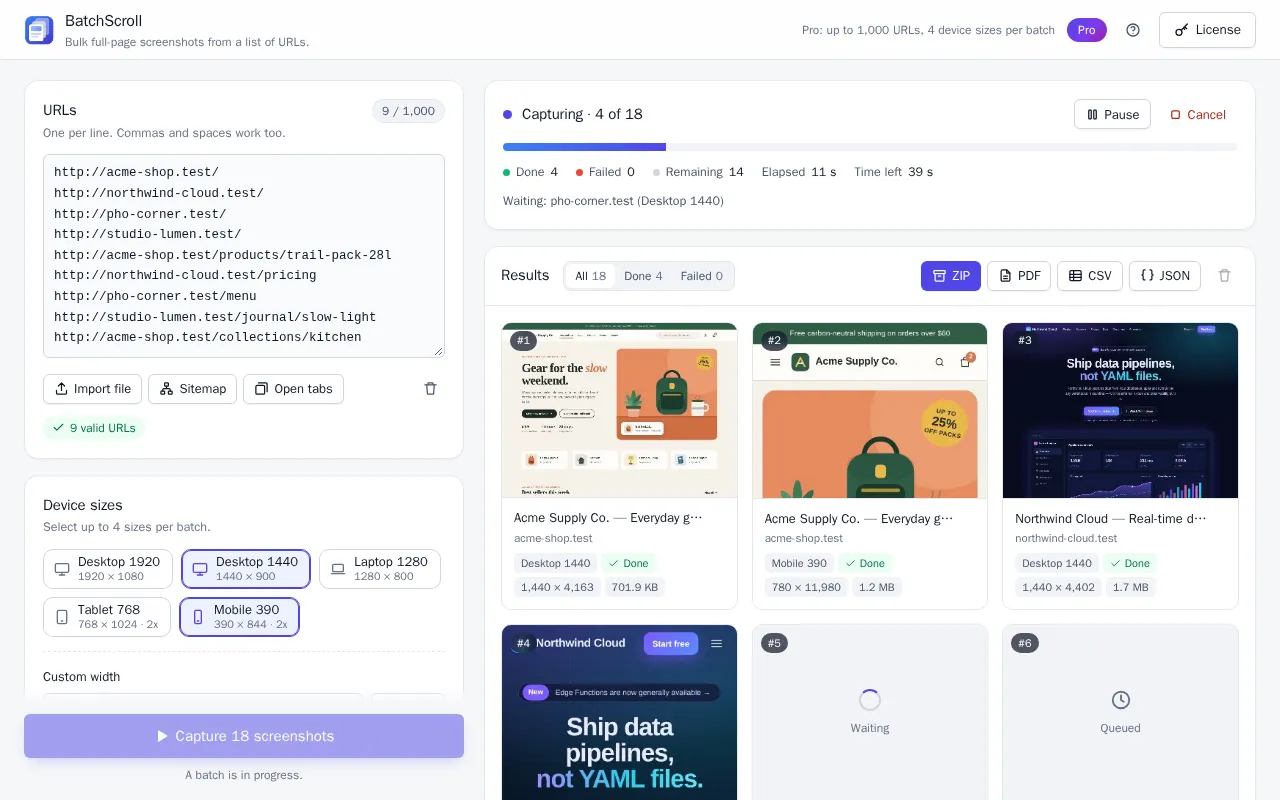
Leave Chrome's debugging bar alone. While a batch runs, Chrome shows a "started debugging this browser" bar; closing it pauses the batch. Keep Chrome open until the batch finishes.
Use Pause and Resume if you need the computer, or Cancel to stop. Results are kept locally and restored when you reopen the app, and Continue (N left) picks up an interrupted or canceled batch where it stopped.
Step 5: Download the ZIP and check report.csv
Click ZIP. You get every screenshot, named like 001_yoursite.com_pricing_desktop-1440.png, plus report.csv with one row per screenshot. Filter these columns in a spreadsheet:
| Column | Look for | Meaning |
|---|---|---|
status, error_message | error | Not captured. Click Retry failed, or raise Page timeout first. |
http_status | 404, 500… | Captured, but the sitemap lists a broken page. |
final_url | Differs from url | The page redirected; the image shows where it landed. |
truncated | true | Taller than the limit (15,000 px Free, 60,000 px Pro) and cut. |
warnings | LOAD_TIMEOUT | Didn't finish loading in time; captured as rendered. |
The Failed filter above the results shows failures at a glance, and links to PDFs or downloads are reported as "Not a web page". On Pro, a merged PDF of the batch suits a client handover; it's made of images, so its text isn't searchable.
Sites with no sitemap
BatchScroll is not a crawler: it captures the URLs you give it and doesn't follow links. Without a sitemap, build the list from:
- An SEO crawler export, filtered to HTML pages with a 200 status.
- Your CMS, which can usually list or export all pages, posts and products.
- Analytics or Search Console page reports. They often list paths like
/pricing, so add the domain in a spreadsheet first. - Open tabs, for a small site: open each page and add every tab at once.
Import file adds every http(s) address in a .txt or .csv file (up to 5 MB), so delete columns holding other URLs, such as canonicals, first.
Sites with more than 1,000 pages
A Pro batch holds up to 1,000 URLs, so split bigger sites:
- Import the child sitemaps one at a time (
page-sitemap.xml, thenpost-sitemap.xml…) instead of the index. - If a child sitemap has more than 1,000 URLs, split its list into files of 1,000 lines and use Import file for each.
- After each batch, download the ZIP, then Clear the list (trash icon) and load the next chunk. A new batch replaces the current results.
The default file name pattern, {index}_{host}{path}_{preset}, includes host and path, so names stay unique across batches. Since the index restarts in every batch, Pro users can set File name pattern to {host}{path}_{preset} and every file sorts by URL in one folder.
Frequently asked questions
Can I screenshot every page of a website without a sitemap?
Yes, if you have the list of URLs. BatchScroll doesn't discover pages itself, so export a list from an SEO crawler, your CMS or analytics, then paste it or use Import file.
What if the site has more than 1,000 pages?
Split it into Pro batches of up to 1,000 URLs, for example one child sitemap per batch, and download each ZIP before starting the next. File names include the host and path, so they don't collide.
Does it work on a staging site that isn't public?
Yes. Pages load in a normal window of your Chrome profile, so staging, localhost and VPN sites your Chrome can open, including ones you're signed into, are captured. If the sitemap itself needs a login, copy its URLs from a tab instead of importing it.
Are very long pages cut off?
Only past the height limit: 15,000 CSS pixels on Free and 60,000 on Pro. Longer pages are cut there and marked truncated in report.csv.
Does BatchScroll crawl the site or follow links?
No. It captures exactly the URLs in your list, from a paste, a file, your open tabs or a sitemap import on Pro, and never follows links.
How do I find pages that failed?
Use the Failed filter above the results, or filter report.csv for status error; error_message says why. Retry failed captures them again. Also check http_status for 404 or 500 pages, which are captured but broken.
Capture your whole site in one run
Load a sitemap or URL list and get every page as a full-page screenshot, with a report, in one ZIP. Free plan: 25 URLs per batch, no account needed.