
Quick answer
- Sign in to the site in a normal Chrome tab first, doing any SSO or two-factor step yourself.
- Open BatchScroll, paste the URLs, pick a device size and click Capture N screenshots.
- The capture window is a normal window of your Chrome profile, so pages open with your existing sessions. Localhost, staging and VPN-only sites work too, if your Chrome can open them.
- Check
final_urlinreport.csv: pages that landed on a login screen need another pass after you sign in again. - No passwords, cookies or screenshots leave your computer.
Why cloud screenshot tools struggle with logins
Most results for this search are screenshot APIs: a browser on someone else's server opens your URL and sends back an image. That server has never signed in to your app, so you're asked to hand it your session by exporting cookies, setting headers or scripting the login form. It breaks in predictable ways:
- Sessions expire. Exported cookies stop working, and the next run quietly returns screenshots of your login page.
- Two-factor and SSO get in the way. A script can't approve a prompt on your phone, and single sign-on routes the browser through an identity provider.
- IP allowlists and VPNs. Staging sites and intranets often accept only the office network or VPN, not a cloud server's address.
- Localhost isn't on the internet.
http://localhost:3000exists only on your machine. - A session cookie is a key to your account. Whoever holds a valid one can usually act as you until it expires, so pasting it into a third-party service is a risk many security teams won't accept.
The manual route avoids this because it uses your own browser: in Chrome DevTools, open the Command menu (Ctrl+Shift+P, or Cmd+Shift+P on a Mac) and run Capture full size screenshot. Fine for three pages; tedious for thirty.
How BatchScroll captures signed-in pages
BatchScroll brings the capture to your browser instead of moving your session elsewhere. When you start a batch, it opens a separate, unfocused Chrome window (a normal window of the same Chrome profile) and loads each URL there, with the cookies and sessions that profile already has. There is nothing to configure: if a page shows your dashboard in a normal tab, it shows the same dashboard in the capture window.
| Concern | Cloud screenshot API (typical setup) | BatchScroll |
|---|---|---|
| How it gets your session | Exported cookies, headers or a login script | Uses the sessions already in your Chrome |
| Two-factor and SSO | Has to be scripted or worked around | You complete it once, in a normal tab |
| Localhost, staging, VPN | Needs a tunnel or an allowlist entry | Works if your Chrome can open it |
| Where screenshots are made | On a remote server | On your computer, and they stay there |
| Scheduled or unattended runs | What these services are built for | No: you start each batch, and Chrome must stay open |
How to screenshot pages behind a login, step by step
- Sign in first. In a normal Chrome tab, log in (completing SSO or two-factor yourself) and open one of the pages to confirm you see content, not a login screen. "Keep me signed in" helps on longer batches.
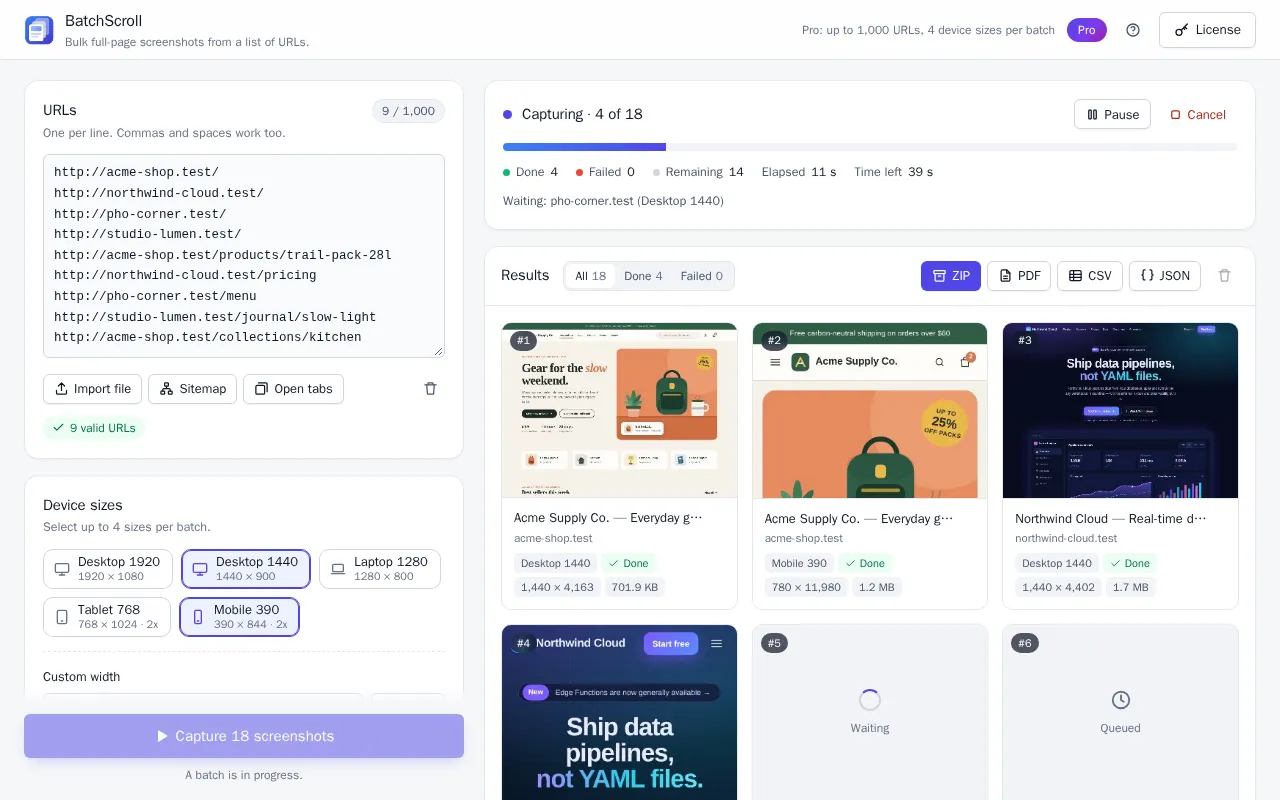
- Open BatchScroll: click its toolbar icon, then Capture a list of URLs; the app opens in a tab.
- Add the URLs. Paste them one per line, use Import file (.txt or .csv) or click Open tabs. Sitemap import (Pro) downloads the sitemap without your cookies, so a sitemap behind a login won't load; use a list instead.
- Remove URLs that do something when opened. Every link opens with your session, so a sign-out link, a one-click "approve" or "unsubscribe" link or a delete URL would run as you.
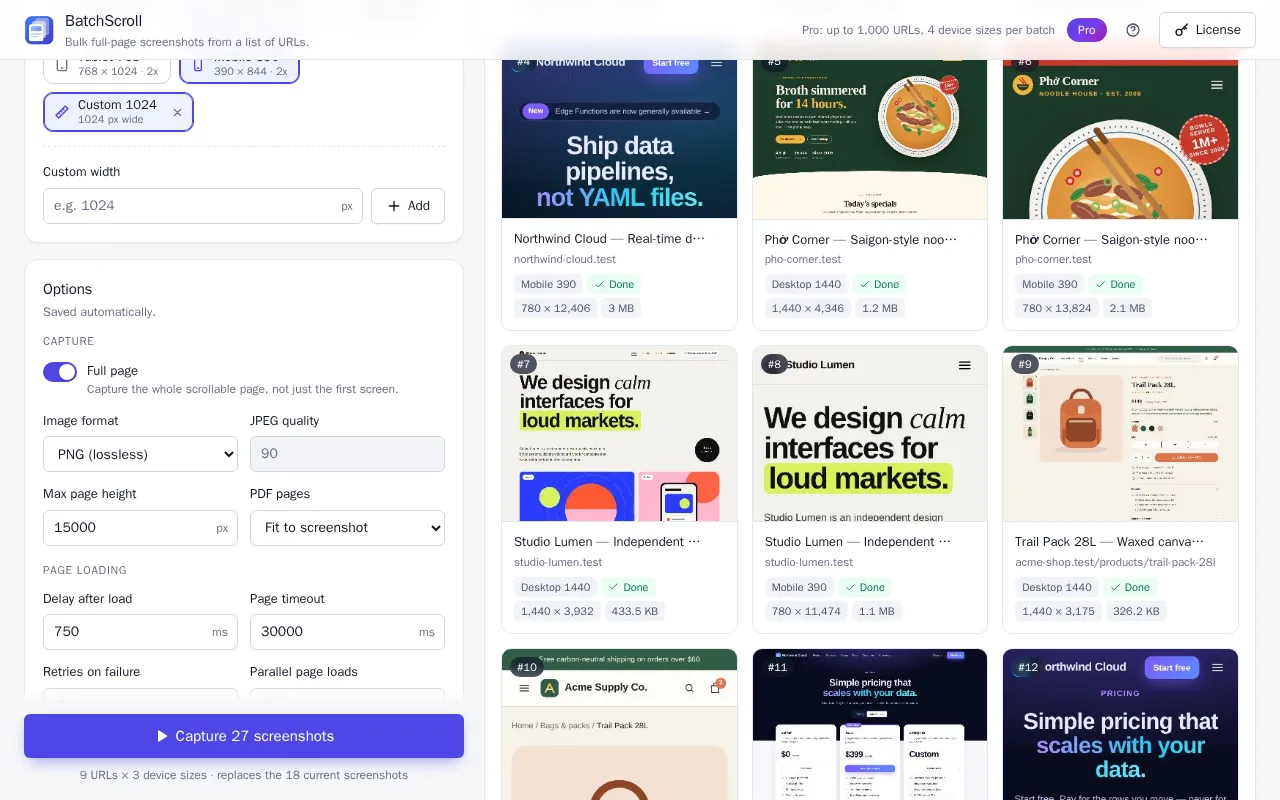
- Pick a device size under Device sizes: one per batch on Free, up to four on Pro.
- Give app pages time to render. Dashboards often fetch data after the page loads, so raise Delay after load to 2–3 seconds and keep Scroll to load lazy content on.
- Click Capture N screenshots. Chrome shows its "started debugging this browser" bar; closing it pauses the batch, and closing the capture window cancels it. When it's done, click ZIP for the images plus
report.csv.
App layouts: many web apps scroll inside a panel, not the page. Full page captures the page's own scroll height, so those screens come out window-sized. Test one page first; a Custom CSS (Pro) rule such as .main-panel { height: auto !important; overflow: visible !important; }, with your app's selector, can sometimes expand the panel.
Staging, localhost and VPN sites
Pages load on your computer, so the rule is simple: if the URL opens in a normal Chrome tab right now, it can be captured.
- Localhost: keep the dev server running and type the full address, such as
http://localhost:3000/pricing. Without a scheme, BatchScroll assumeshttps://. - Local HTML files: only http and https addresses work, so serve the folder (for example
python3 -m http.server 8000) and capturehttp://localhost:8000/…. - Intranet names: single-word hostnames like
http://wiki/need the scheme in front, or they're skipped as invalid. - VPN-only staging: connect before you start and stay connected until the batch finishes.
- Browser password pop-ups (HTTP authentication): BatchScroll declines these prompts so they can't stall a batch; a page that still asks for one is captured as its 401 response. Normal sign-in forms work as described above.
When your session expires mid-batch
If a session times out partway through, the remaining pages usually redirect to the login screen, and BatchScroll faithfully captures the login screen. That isn't an error, so those items show as done, not failed.
To find them, open report.csv and compare url with final_url: rows ending on /login or your identity provider's domain need another pass. The title and http_status (401 or 403) columns help too, and result cards are tagged with statuses such as HTTP 401. Then:
- Download the ZIP first, because a new batch replaces the current results.
- Sign in again in a normal tab.
- Paste only the affected URLs and capture them again.
Retry failed covers items that actually failed, such as timeouts or network errors after a VPN drop. A redirect to a login screen didn't fail, so it needs a fresh batch.
Tip: keep batches moderate. Several smaller batches mean an expired session costs you one batch, not the whole run, and you can sign in again in between. On Pro, setting Parallel page loads to 1 is gentler on a small staging server.
Hiding personal data before capture (Pro)
Internal pages often show names, email addresses and avatars. Two Pro options clean up a page before it's captured:
- Hide cookie banners & chat widgets removes common consent pop-ups and chat bubbles.
- Custom CSS is applied to every page before capture, for example
.user-email, .avatar { visibility: hidden !important; }or.customer-name { filter: blur(6px) !important; }
Use your app's own class names (right-click an element and choose Inspect). visibility: hidden keeps the layout intact, while display: none lets content shift. CSS hides only what its selectors match, so check a test page first.
Privacy: what leaves your computer (nothing)
- No passwords or cookies are shared. BatchScroll never asks for credentials and doesn't read or export your cookies; pages simply load like any other tab.
- Screenshots stay local, in the extension's storage and in your normal downloads when you export. BatchScroll has no server to send them to.
- Only two network calls of its own: the Gumroad license check (Pro) and downloading a sitemap you ask it to import.
- The debugger permission is used narrowly: only on the tabs of BatchScroll's capture window, only while a batch runs. See the permissions section of the privacy policy.
The sites you capture see ordinary visits from you, so they may appear in that app's activity logs. And screenshots of internal pages can contain personal or confidential data: treat the ZIP like any other export from that system, store and share it only as your organization's rules allow, and delete it when you're done.
Frequently asked questions
Do I have to share my password or cookies?
No. BatchScroll captures pages in a normal window of your own Chrome profile, so they load with the sessions you already have. It never asks for, reads or exports your passwords or cookies.
Does it work with SSO or two-factor login?
BatchScroll doesn't log in for you, so the login method doesn't matter to it: complete SSO or two-factor yourself in a normal Chrome tab, then start the batch. The capture window uses that same session.
Can it capture localhost?
Yes, along with staging servers and intranet or VPN sites: any http or https address your Chrome can open. Type the full address, such as http://localhost:3000/, because addresses without a scheme are treated as https.
Is any data uploaded?
No. Screenshots, URL lists and reports stay on your computer. BatchScroll's only network requests of its own are the Pro license check with Gumroad and downloading a sitemap you choose to import.
What if my session expires during a batch?
Pages that redirect to a login screen are captured as that login screen. Find them by comparing url and final_url in report.csv, download the ZIP, sign in again and capture those URLs in a new batch.
Can I hide personal information in the screenshots?
Yes, with Pro. Custom CSS is applied before each capture, so a rule such as .user-email, .avatar { visibility: hidden !important; } hides those elements, and a blur filter can obscure them instead. Hide cookie banners & chat widgets removes common overlays.
Capture your signed-in pages without sharing a login
Install BatchScroll, sign in as usual and capture your whole list from your own Chrome. Free plan: 25 URLs per batch, no account needed.