
Quick answer
- Build one URL list: sitemap, crawler export, top pages from analytics, plus the old URLs that must redirect.
- Before go-live, capture full-page screenshots and download the ZIP (images +
report.csv). - After go-live, run the exact same list with the exact same settings.
- Check
final_urlandhttp_statusin the reports for missing redirects, 404s and homepage redirects. - There's no built-in visual diff: compare the paired images side by side or with an image-diff tool.
What website migration screenshots need to show
After a CMS move, a domain change or a redesign, clients ask three things: what did it look like before, did every page come across, and do the old URLs still work? Once the old site is gone you can't screenshot it anymore, so the baseline has to exist first. Visual QA before and after catches missing sections and broken templates; a status report lets you check redirects after migration.
For a handful of pages, Chrome DevTools' Capture full size screenshot command works fine. For hundreds of pages, twice, at the same sizes, it doesn't. Most tools built for this are code libraries or paid visual-regression services. BatchScroll is the no-code option: a Chrome extension that captures in bulk and writes a status report next to the images, all on your own computer.
Step 1: Build the URL list
You'll use this list twice, so build it carefully. BatchScroll isn't a crawler; it captures the URLs you give it. Good sources:
- The sitemap. With Pro, click Sitemap → Import from sitemap, enter the sitemap URL and click Load URLs.
- A crawler export saved as .txt or .csv and added with Import file. It catches pages the sitemap forgot.
- Top pages from analytics: the pages with traffic, backlinks or conversions. Clients check these first.
- Old URLs from your redirect map. After go-live, these are the addresses you test.
Paste everything into the URLs box (one per line; commas and spaces work too). Invalid lines and duplicates are skipped. Save the cleaned list as a text file so the second run uses the same URLs in the same order.
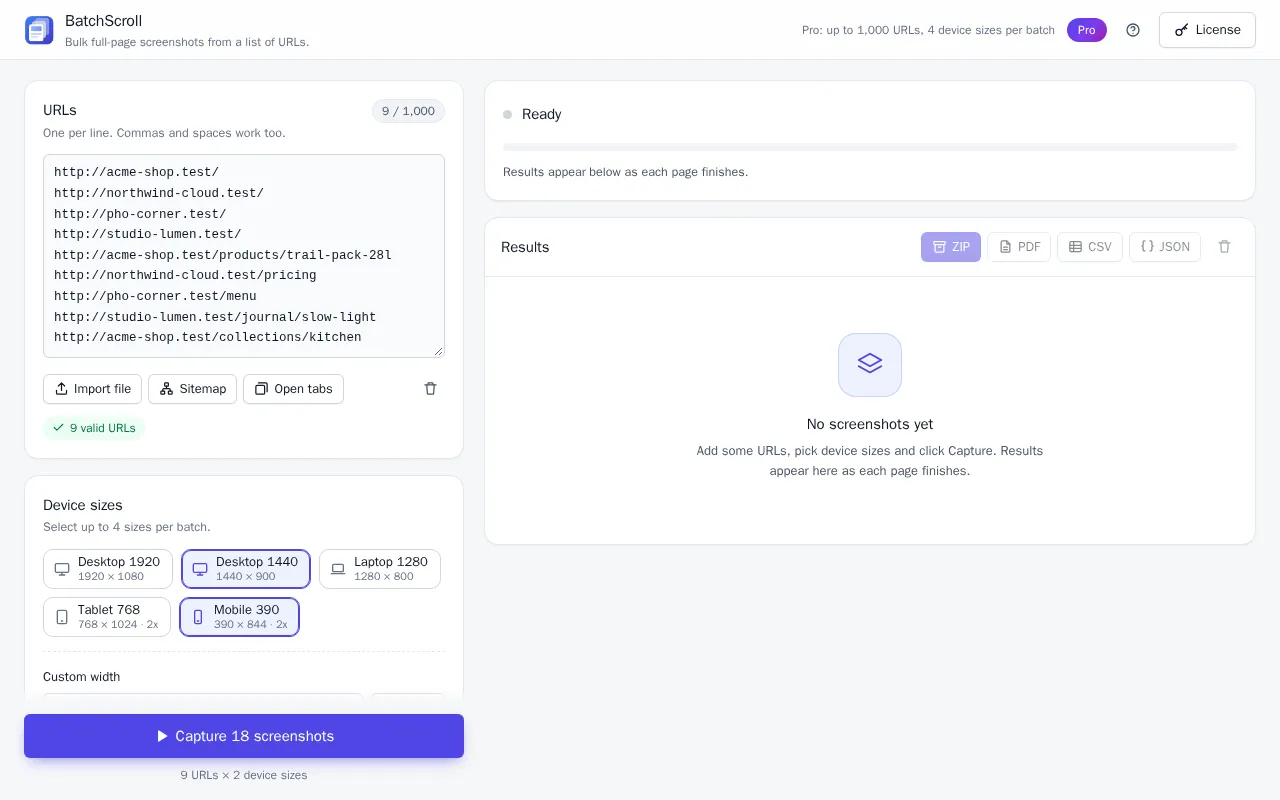
Tip: The Free plan takes 25 URLs per batch. Pick one or two pages per template (home, category, product, article, contact) for a useful small-site baseline. Pro takes up to 1,000 URLs per batch.
Step 2: Capture the baseline before go-live
Choose your settings once and write them down:
- Device sizes: for example Desktop 1440 and Mobile 390. Free captures one size per batch; Pro up to four, including custom widths.
- Full page: on, or you miss everything below the first screen.
- Delay after load: 1 second by default. Raise it if sliders are still moving.
- Hide cookie banners & chat widgets (Pro): on. A banner dismissed on the old site can reappear on the new one; hiding banners in both runs keeps the comparison fair. Catch custom banners with Custom CSS (Pro).
Click Capture N screenshots. A separate Chrome window opens and works through the list. Leave Chrome's "started debugging this browser" bar alone; closing it pauses the batch.
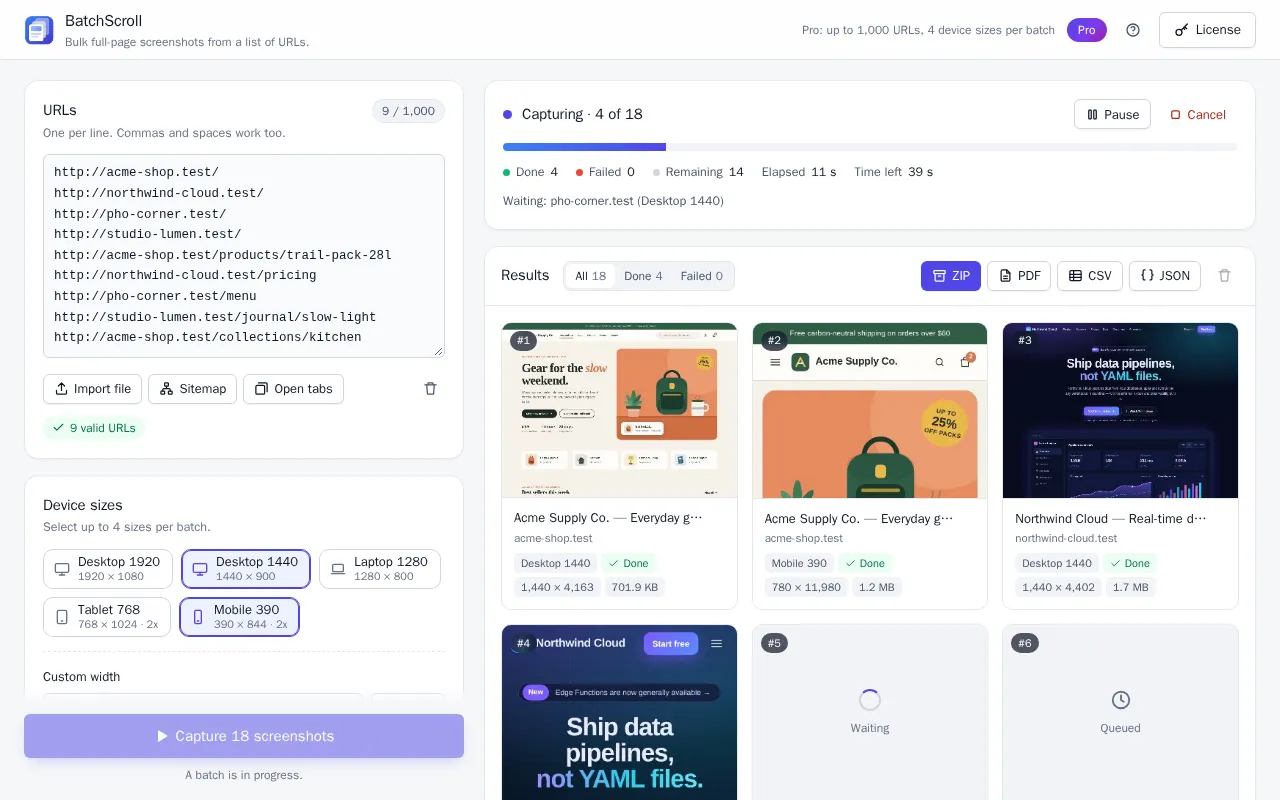
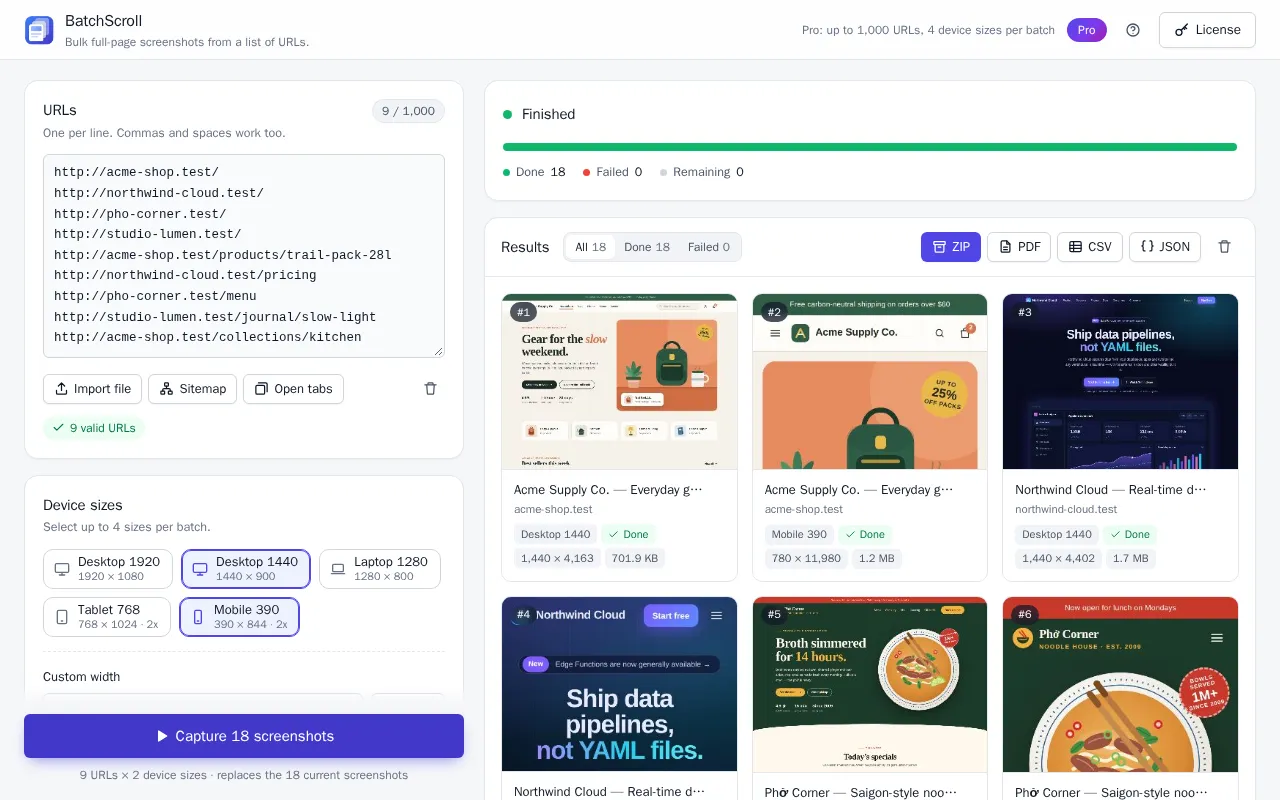
When it finishes, click ZIP to get batchscroll-YYYYMMDD-HHmmss.zip with every image and report.csv (Pro adds report.json, which also records the settings used). Download it right away: starting a new batch deletes the current screenshots from the app.
Want to check the new site on staging before the DNS switch? Anything your Chrome can open works, including signed-in previews, localhost and VPN-only servers.
Step 3: After go-live, re-run the same list
Once DNS has switched, load the saved list with Import file, confirm the settings match (they're remembered between batches on the same computer) and capture again. For URLs that changed, run the old addresses: each should now redirect, and the report shows where it landed. Capture the new URLs in a separate batch if you want clean shots of them too.
Reading report.csv during a migration
The CSV has one row per URL per device size, so filter to one preset for the redirect check. The columns that matter:
| Column | What it tells you |
|---|---|
http_status | Status of the page that finally loaded: 200 is fine, 404/410 means a missing page or redirect, 5xx a server error. Error pages are still captured. |
final_url | Where the URL ended up. If it differs from url, it redirected; check it's the right page, on https, on the production domain. |
title | A 200 titled "Page not found" is a soft 404. Many old URLs sharing one title usually means they all land on one page. |
truncated | true when the page exceeded the height limit (15,000 px Free, 60,000 px Pro) and was cut. |
error_code, error_message | Why a page couldn't be captured at all, e.g. NAVIGATION_FAILED when a host name no longer resolves. |
warnings | Non-fatal issues such as LOAD_TIMEOUT. A page that was fast before and times out after deserves a look. |
Patterns worth flagging:
final_urlequalsurlfor an address that should have moved: the redirect is missing.final_urlis the homepage for dozens of old URLs: a blanket redirect that search engines can treat like a soft 404. Map them to the closest page instead.- 200 before, 404 after: a page that existed and now doesn't.
final_urlon staging or http://: a configuration leftover.
Note: http_status belongs to the final page, not each hop. A working 301 shows up as a changed final_url with status 200. BatchScroll doesn't record redirect chains or tell a 301 from a 302; use a redirect checker or crawler when that matters.
Comparing before and after
BatchScroll has no built-in visual diff, but it gives you matching files, which makes comparing easy. Unzip each run into its own folder:
client-migration/before/: the unzippedbatchscroll-20261001-093012.zipclient-migration/after/: the unzippedbatchscroll-20261015-101544.zip
With the same list in the same order, the file names already match: the default pattern {index}_{host}{path}_{preset} is built from the URL you entered, not where it redirected. If the runs use different hosts (staging versus live, old versus new domain), set a File name pattern (Pro) such as {path}-{preset}, so /products/trail-pack-28l becomes products_trail-pack-28l-desktop-1440.png in both folders.
Then open the pairs side by side, or run both folders through an image-diff tool such as ImageMagick's free compare command. Full-page diffs get noisy: a new 80 px banner shifts everything below it. For SEO audit screenshots in client reports, side-by-side pairs are usually clearer.
Delivering to clients and archiving
- ZIP: the complete record. Keep the dated name
batchscroll-YYYYMMDD-HHmmss.zip; it records when the batch was created. - PDF (Pro): one PDF per batch (a very large batch comes as several PDF files), in list order, as Fit to screenshot or A4 portrait. Before and after PDFs from the same list line up page for page. The pages are images, so text isn't searchable.
- CSV: put both reports in one spreadsheet, match rows on
urland add a status column. That's your post-migration punch list.
To archive website pages long-term, store the ZIPs with the project files. Nothing is uploaded: screenshots stay in the extension's local storage and your downloads.
A short migration screenshot checklist
Add these lines to your website migration checklist:
- URL list from sitemap, crawl, analytics and redirect map, saved as a file.
- Device sizes, Full page, Delay after load and banner hiding written down.
- Baseline captured before go-live; ZIP stored in
before/. - Same list re-run after go-live with the same settings; ZIP stored in
after/. http_statuschecked for 404s and 5xx;final_urlchecked for missing or homepage redirects.- Key templates compared side by side on desktop and mobile.
- Before and after PDFs or ZIPs sent to the client with the punch list.
Frequently asked questions
Does BatchScroll highlight differences automatically?
No, there is no built-in visual diff. You get matching before and after screenshots plus two report.csv files. Compare the images side by side or with an image-diff tool; the http_status, final_url and title columns catch most broken pages without opening an image.
Can I capture the staging site before the DNS switch?
Yes, if your Chrome can open it: a staging subdomain, preview URL, localhost, VPN-only server or a preview behind a login, since capturing happens in your own Chrome profile. With Pro, a file name pattern without {host}, such as {path}-{preset}, gives staging and live files the same names.
Are 404 and 500 pages captured?
Yes. Error-status pages are captured and their code goes into the http_status column. Pages that can't be opened at all, such as a host name that no longer resolves, are marked as failed with an error_code and error_message.
How do I keep before and after file names matching?
Run the same URL list in the same order with the same device sizes. Default names are built from the URL you entered, not where it redirected, so they repeat. If the runs use different hosts, set a File name pattern (Pro) like {path}-{preset}.
Which pages should I include?
Pages with traffic or backlinks, one or two examples of every template, money pages (pricing, product, sign-up, contact, forms) and the old URLs that must redirect. Free takes 25 URLs per batch; Pro takes up to 1,000.
Can I check redirects with it?
Partly. report.csv records each URL's final_url and the http_status of the page that finally loaded, so you see whether an old URL lands on the right page, a 404 or the homepage. It doesn't record redirect chains or 301 versus 302; use a redirect checker for that.
Capture your baseline before the switch
Paste your URL list now and keep a dated record of every page before anything changes. Free plan: 25 URLs per batch, no account needed.